⚔️ How to Connect to Max-WoW
Follow the steps below (one by one). If you get stuck at any step, join Discord and we’ll help you instantly.
WotLK 3.3.5a
Fast Setup
Live Support
STEP 1
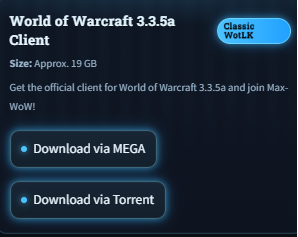
Download the Max-WoW Client
Install a clean Wrath 3.3.5a client — this avoids 99% of issues (wrong version = cannot connect).
Recommended install path
Extract to something simple like
C:\Games\Max-WoW\ (avoid Program Files).
If your download is blocked
Disable browser “safe download” warning for this file, or try a different browser (Chrome / Firefox).
- Make sure you have enough disk space before extracting.
- Do not mix other private server patches into this client.
- If the game crashes instantly → usually wrong folder permissions or broken extract.
STEP 2
Set Realmlist
Most “can’t connect” problems happen because realmlist is wrong. Use the download button (no mistakes).
✅ 1-Click Method (Recommended)
Download our realmlist.wtf and place it in ONE of these folders:
World of Warcraft\Data\enUS\realmlist.wtfWorld of Warcraft\Data\enGB\realmlist.wtfImportant
Do NOT create
realmlist.wtf.txt. It must be exactly realmlist.wtf.
Manual Method (Advanced)
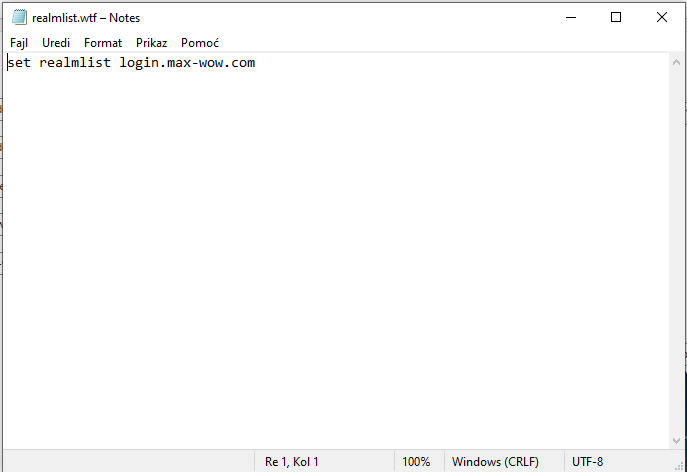
Open realmlist.wtf with Notepad and paste this line (only 1 line inside the file):
set realmlist login.max-wow.com
Save the file, then launch the game.
Quick checks if it still won’t connect
- Make sure you edited the correct folder: enUS or enGB.
- Remove any extra spaces or extra lines inside realmlist file.
- If you have multiple WoW folders, confirm you are editing the one you actually launch.
STEP 3
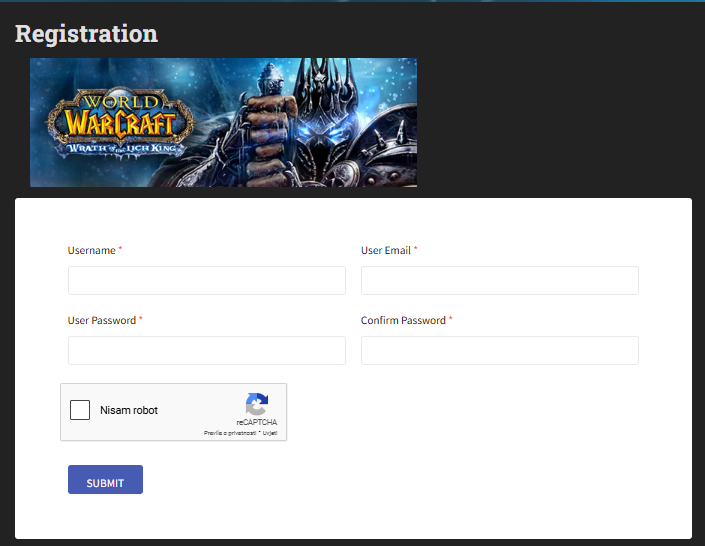
Register Your Account
Create your game account on the website, then use the same username/password in-game.
Tip
Use only letters + numbers for username/password for best compatibility.
Common mistakes
- Using email as username (use the exact username you registered).
- Copy/paste spaces at the end of username/password.
- Trying to login before registering (register first).
STEP 4
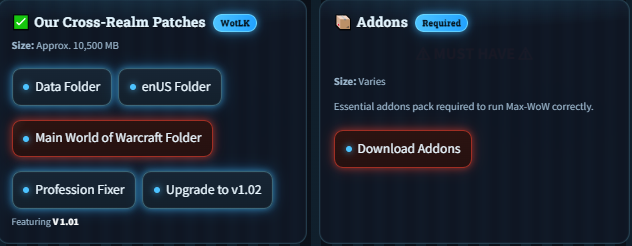
Install Patch (Optional but Recommended)
Patch = see custom mounts, morphs, pets, visuals, and extra content the way it’s meant to look.
If you don’t patch
You can still play, but you may see “missing models” or not see custom visuals properly.
How to install (simple)
- Download the patch zip.
- Open your WoW folder.
- Drag the patch files into the WoW folder (replace if asked).
STEP 5
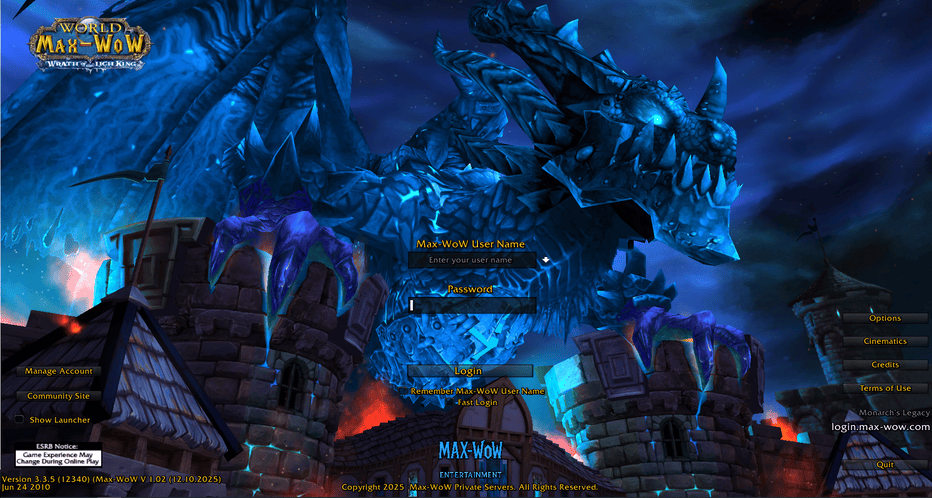
Launch & Login
Start the game correctly and log in with your registered username/password.
Start this file
Wow.exe (not Launcher.exe).
If login fails
- Re-check Step 2 (realmlist) — it’s the #1 cause.
- Make sure Caps Lock is off, and no trailing spaces.
- If you forgot password, use the website tools or ask on Discord.
STEP 6
Choose Your Realm
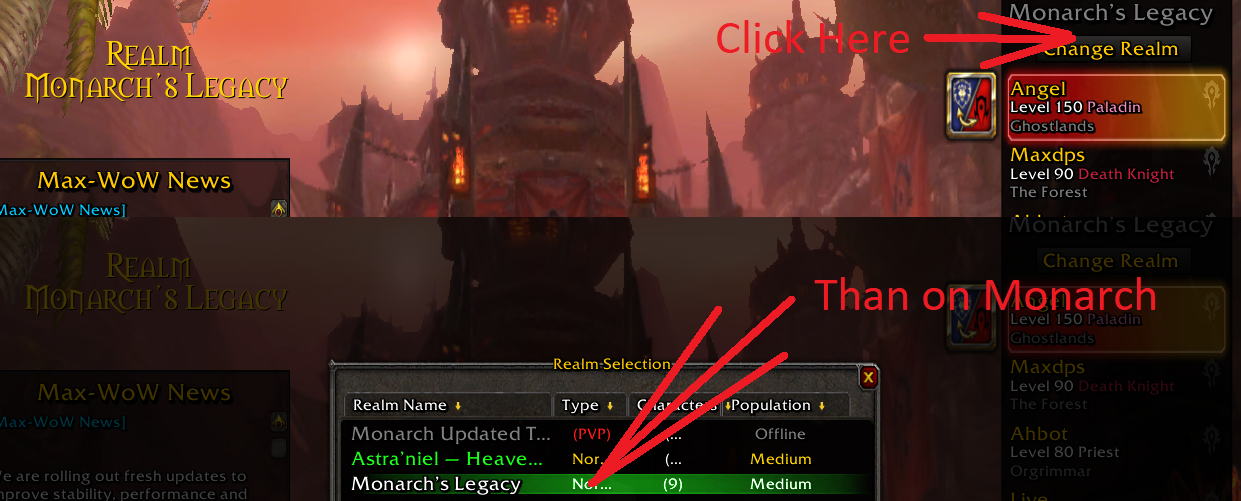
After login, choose the realm you want to play on. You can switch later, but pick the correct one first.
Very important (most players pick wrong realm)
Monarch Realm = our MAIN realm (recommended for new players).
Astraniel = FUN realm (different gameplay / fast fun setup).
Astraniel = FUN realm (different gameplay / fast fun setup).
Where is the realm list?
If you’re on character selection, click Change Realm.
Pick your realm → press OK → then log in again if needed.
Tip
If you create a character on the wrong realm, don’t panic — just change realm and create it on the correct one.
This image is an example (realm list can look slightly different by client).
HELP
Need Help? Join Discord
If anything fails, we’ll fix it with you in minutes. Post a screenshot and tell us which step you are on.
Client VersionWotLK 3.3.5a
Realmlistset realmlist login.max-wow.com
Best FixStep 2 Realmlist
© Max-WoW Development Team — WotLK 3.3.5a
What to include when asking for help
- Which step you are stuck on
- Screenshot of the error
- Did you use enUS or enGB folder?
We respond fast — don’t struggle alone.